Translate

Saturday, June 27, 2026

Oracle Order Management Setup Document in Oracle EBS R12.2


Oracle Order Management Setup Document in R12.2


Definition:
  • Oracle Order management is one of the most important part of the oracle EBS. The Order Management Application provides many flexible features enabling you to set up your system to begin processing different types of sales order.
  • In this document we are going to see the basic setups of Order management in Oracle EBS R12.
  • Few of the information that is required while setting up Oracle Order Management is shared through other modules like System Administrator for enabling profile options, Oracle Pricing Manager for Price List setup.
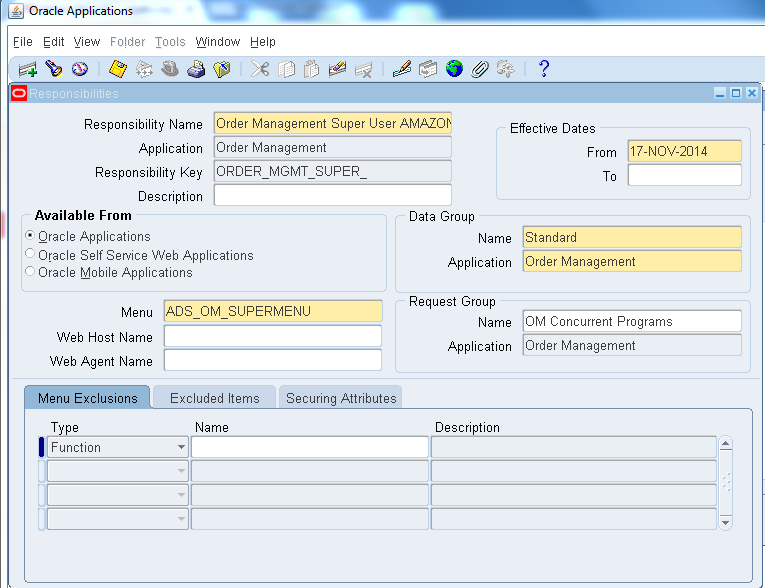
  • Firstly let’s add the Order Management  Super User Responsibility to the User

Invoking: System Administrator→Security→Responsibility→Define


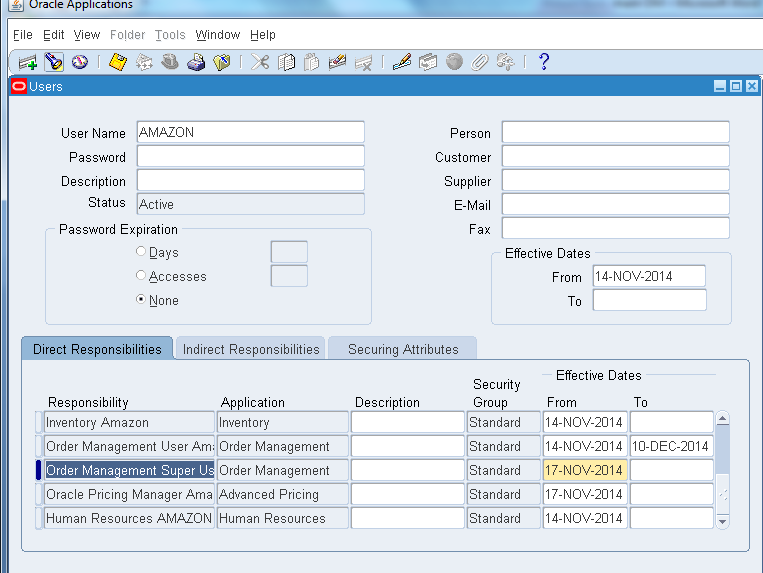
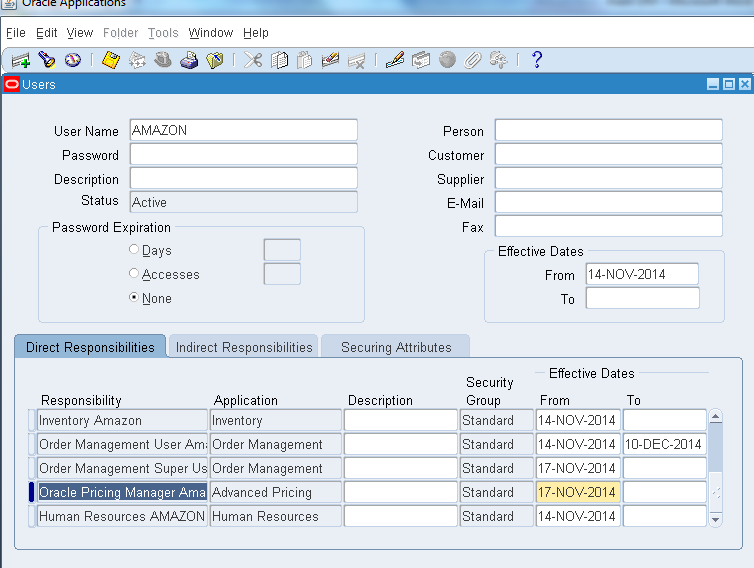
  • Now let’s add the responsibility to the user
Invoking : System Administrator→Security→User→Define


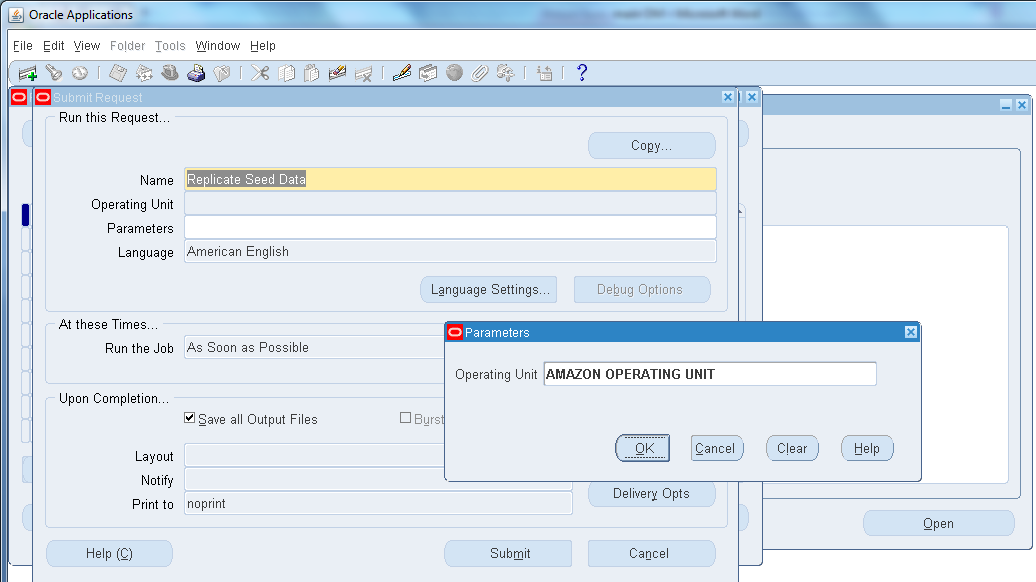
  • Run replicate seed data as below
Invoking: System Administrator→View→Request→Submit New Request

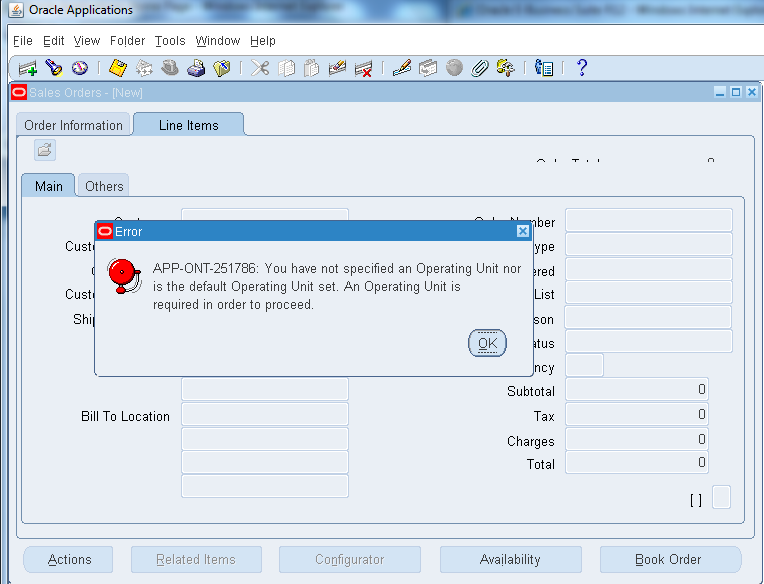
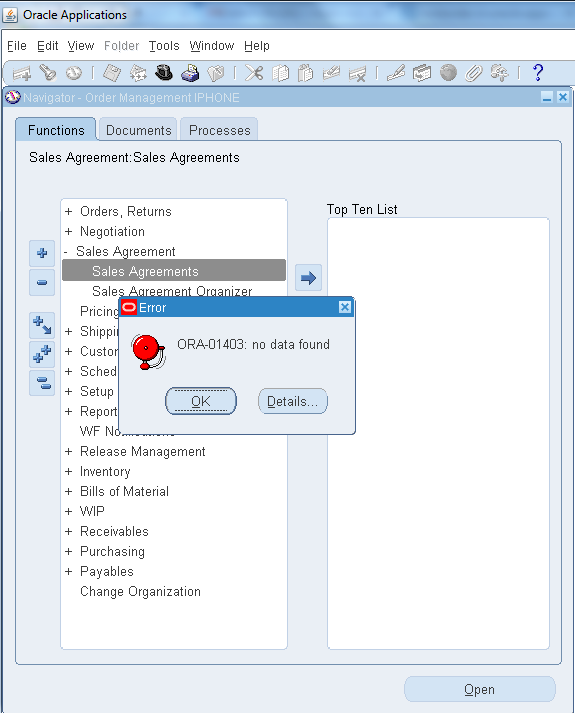
  • Now if switch the responsibility to order management and try to invoke Sales Order or Sales Agreement it won’t allow us to process, it will prompt an error as below.

Order Management→Orders, Returns→Sales Orders
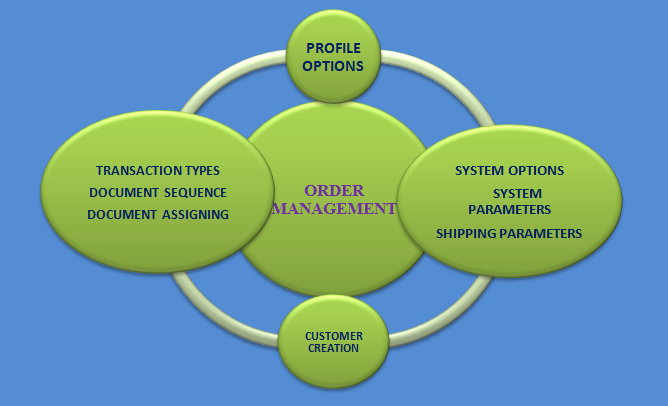
  • In order to enable these functionalities we have to follow mandatory setups as below.
Prerequisites:
  • Profile Options
  • System Options
  • System Parameters
  • Shipping Parameters
  • Transaction Types
  • Document Sequence / Assignment
  • Price List
  • Customers


  • STEP 1: PROFILE OPTIONS

    • For any module profile options is a mandatory setup which has to be followed.
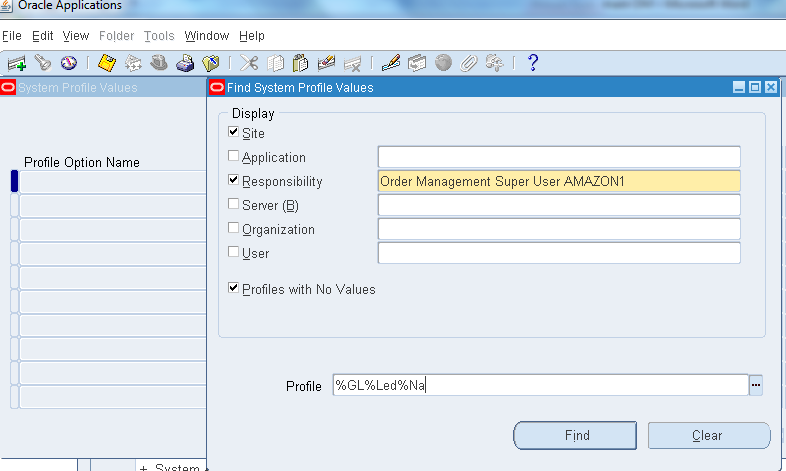
    Invoking: System Adminitrator→Profile→System

    In Profile field enter these features:
    • %GL%Led%NA%
    • %HR%User%, %HR%Sec%, %HR%Bus%
    • %MO%Oper%Unit%,  %MO%Defaul %, %MO%Sec%

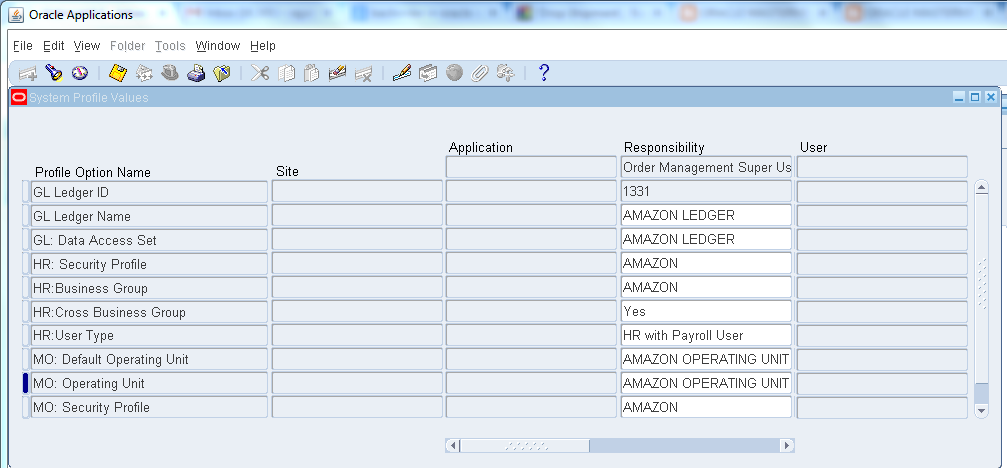
    • So that the final output will appear as below.

    STEP 2: SYSTEM PARAMETERS
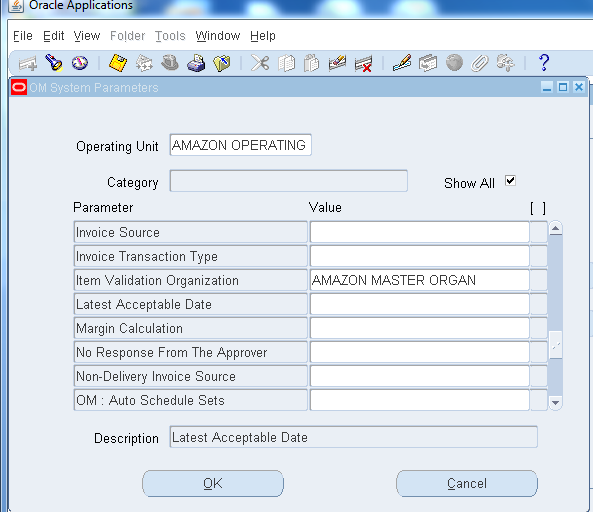
    • We have to enable our Inventory in Item validation Organization
    Invoking: Order Management→Setup→Shipping Parameters→Define
    • Query for Item validation Organization and provide the inventory organization you prefer to connect and save the form.

    STEP 3: SHIPPING PARAMETER
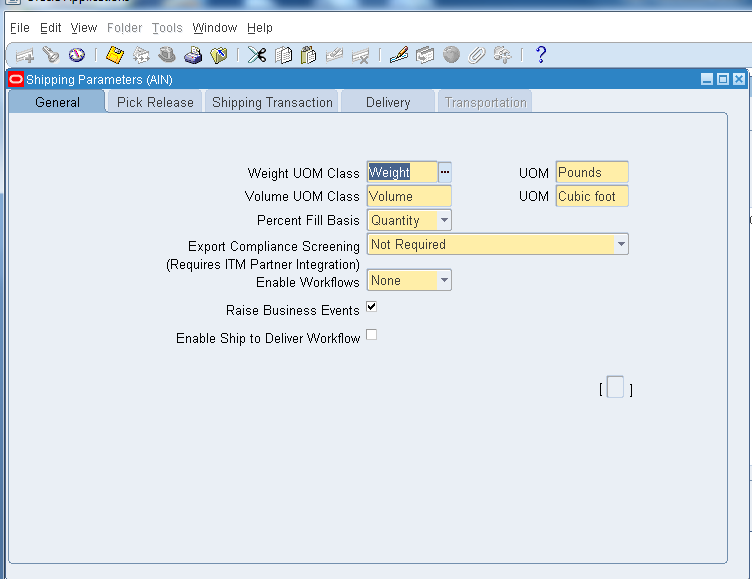
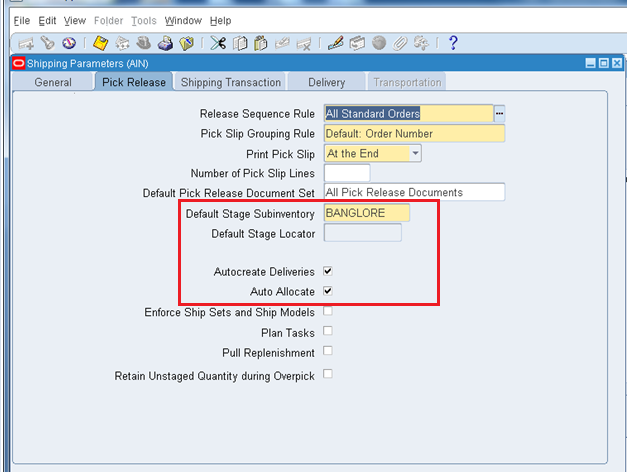
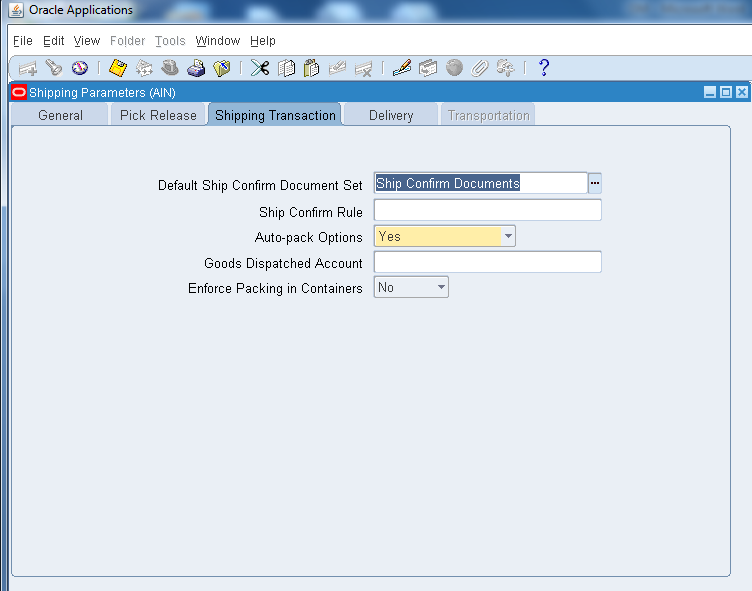
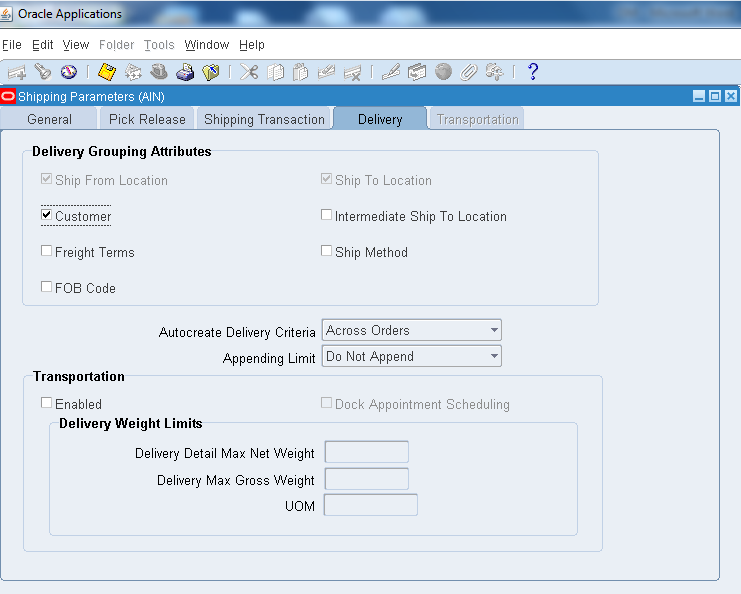
    Invoking: Order Management→Setup→Shipping→Shipping Parameters
    • Provide the details as below for corresponding tabs in Shipping Parameters
    • Here in below dialog box, the sub inventory is BANGLORE so that it will be the default staging for the goods.


    Auto create Deliveries
    • What happens if selected?
    Pick release automatically creates deliveries based on the delivery grouping rules and assigns delivery lines to them. When pick releasing, the Auto create Deliveries check box in the pick release form defaults to this parameter setting if you enter a warehouse. If you do not enter a warehouse, pick release uses this parameter setting from the organization of the warehouse on each sales order line.

    • What happens if Cleared?
    Pick release does not automatically create deliveries.

    Auto Allocate check boxes
    • What happens if Selected?
    Pick release creates move orders and automatically allocates them.

    • What happens if Cleared?
    Pick release creates move orders. You must manually allocate the order lines using the Inventory Transact Move Orders window.


    • Save and close the form above.

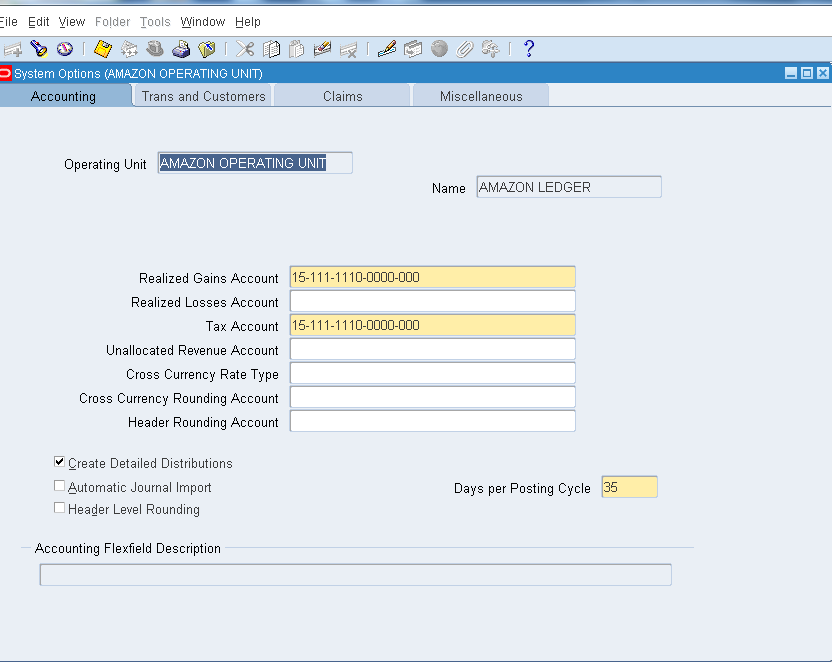
    STEP 4: SYSTEM OPTIONS
    • Here we are going to connect general Ledger and Operating Unit.
    Invoking: Order Management→Setup→Customers→System Options

    • If we have single operating unit it will show as default as below, if multiple please select any one of your choice.
    • In case the Operating Unit doesn’t show up, indicates that there is the problem with your multiorg.
    • Check completely the multiorg setups to solve it.
    • Provide the general ledger name in NAME field and account details in the account fields respectively.


    STEP 5: TRANSACTION TYPES
    • Lets create a new Transaction type which are used to associate workflows for various phases of sales order processing.
    Invoking: Order Management→Setup→Transation Types→Define
    • Below dialog box appears.
    • Enter either Order or Return for the Order Category depending on whether your new line type is for sales lines or return lines.
    • The value Mixed is selected for order type which can contain both sales order and return lines.
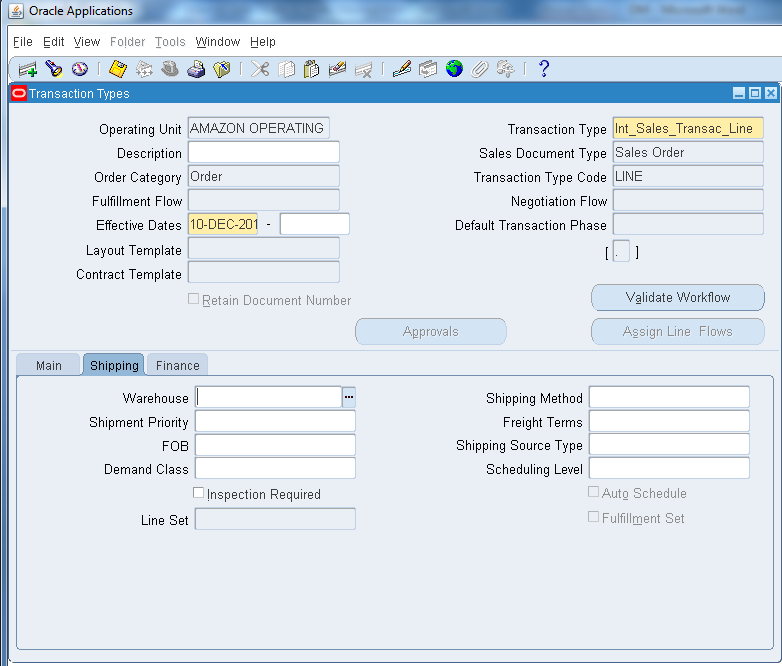
    • Let’s create a Transaction Line as order for understanding.


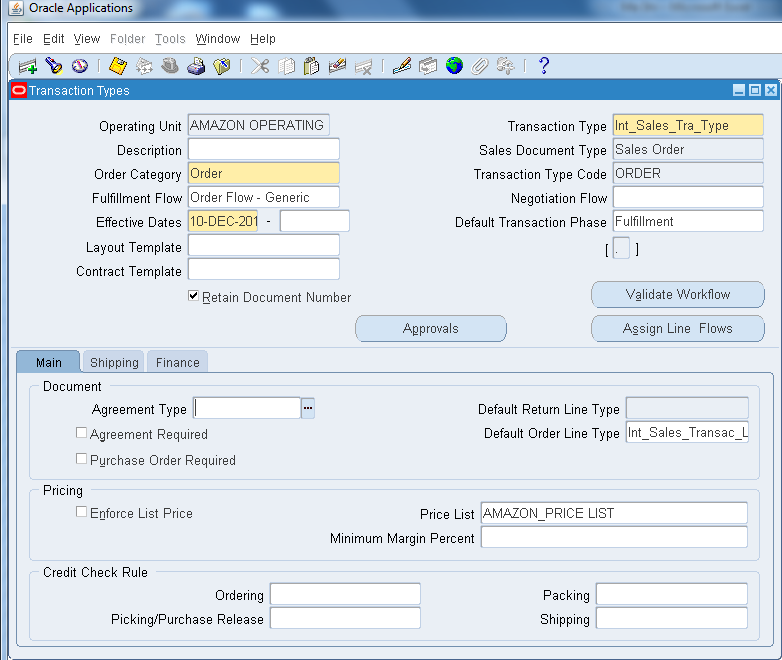
    And Transaction Type as below.
    • Order Category: Order
    • Sales Document Type: Sales Order
    • Transaction Type Code: ORDER
    • Fullfillment Flow: Order Flow – generic
    • Effective Date: Today
    • Default Transaction Phase : Fullfillment
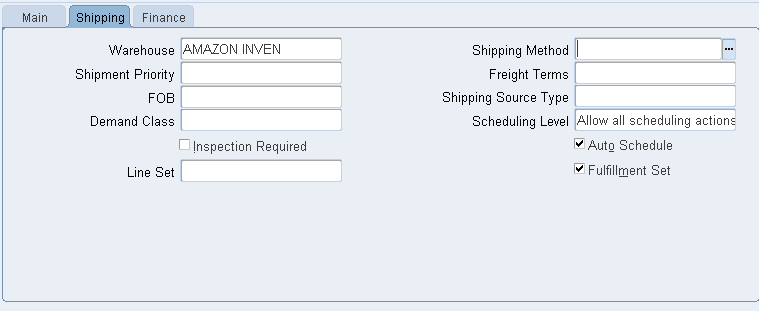
    • In shipping tab mention the below details as well.
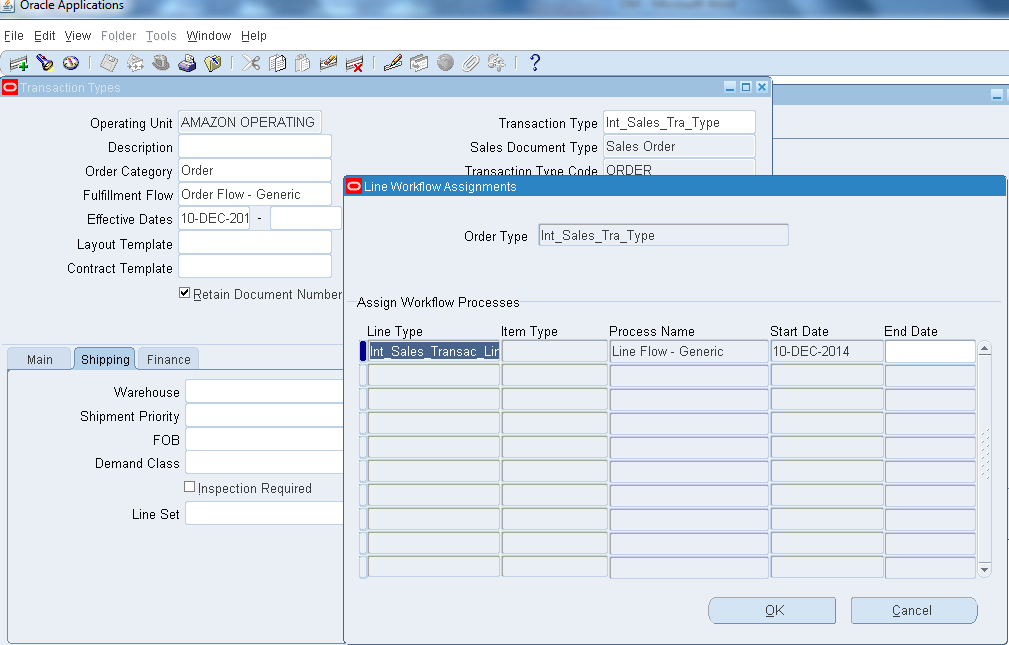
    • Click on assign line Flows
    • Line Type: Attach the Line created.
    • Process Names: Line Flow – Generic as below.
    • Click on Validate Workflows, a concurrent program runs on the background and save the dialog box.

    STEP 6: DOCUMENT SEQUENCE & ASSAIGING
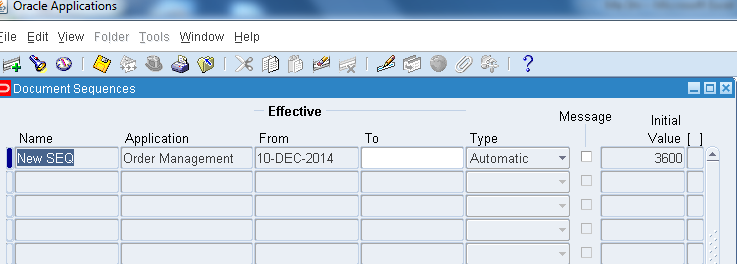
    • Let’s create a sequence for a document which will be followed for the sales order.
    Invoking: Order Management→Setup→Documents→Define
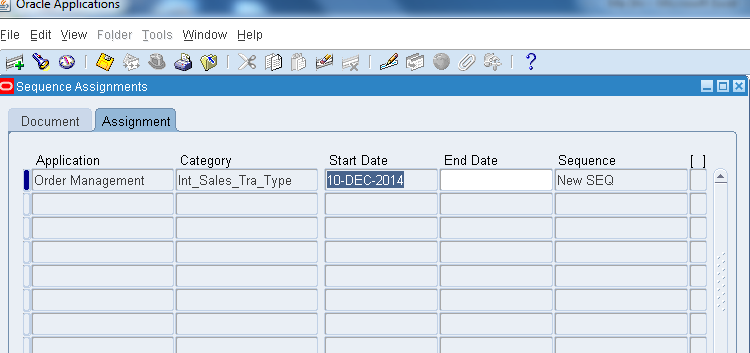
    Assigning:
    Invoking: Order Management→Setup→Documents→Assign
    • Mention the transaction type and sequence name we created.

    STEP 7: PRICE LIST
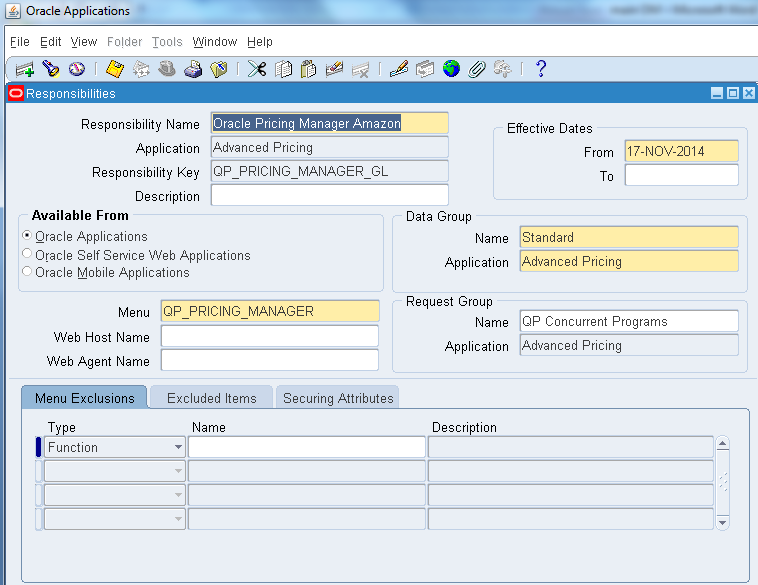
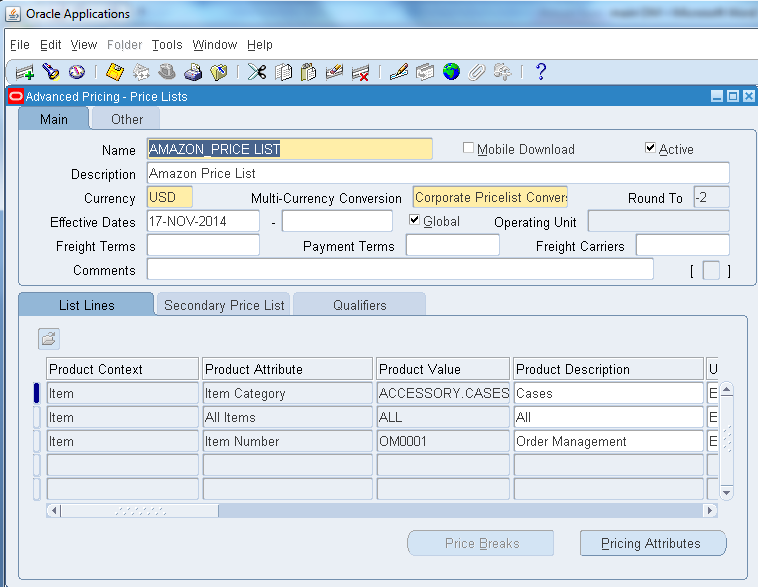
    • In oracle R12 in order to create a price list we have to add new responsibility called Oracle Pricing Manger, hence create a new responsibility from system administrator- security define and assign to the user as below.
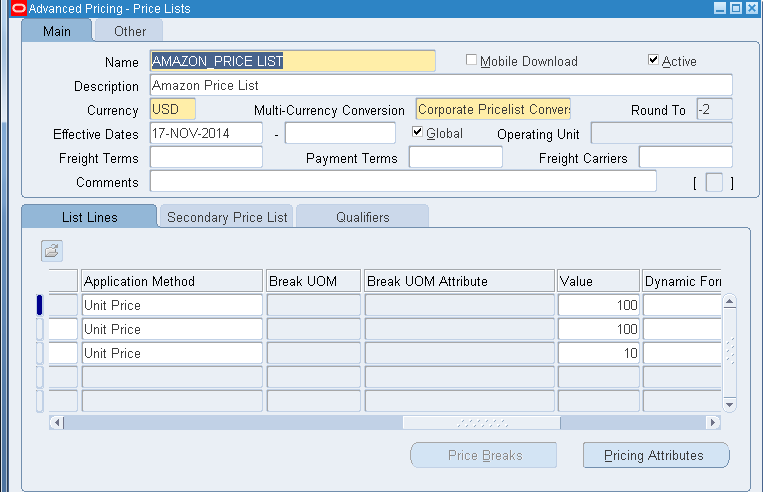
    • Now switch the responsibility to Oracle Pricing Manager→Price List→Price List Setup
    • Make sure the below Profile Options before creating the Price List
    Profile Options:
    QP: Pricing Transaction Entity = Order Fulfillment
    QP: Source System Code = Oracle Pricing
    • Here the product attribute feature updates the priority depending upon the Item Category, Item Number, All Items etc., depending on which the price will be taken.


    Save and close the dialog box.

    STEP 8: Creating CUSTOMERS
    • Lets create a customer for our sales order
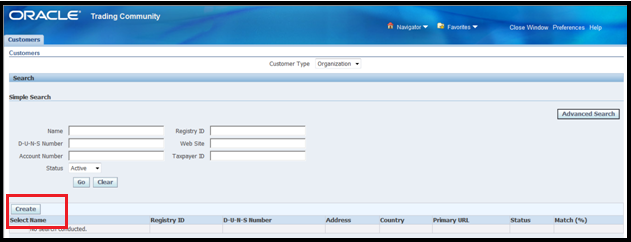
    Order Management→Customers→Standard
    • The below dialog box opens.
    • Click on the create button below.


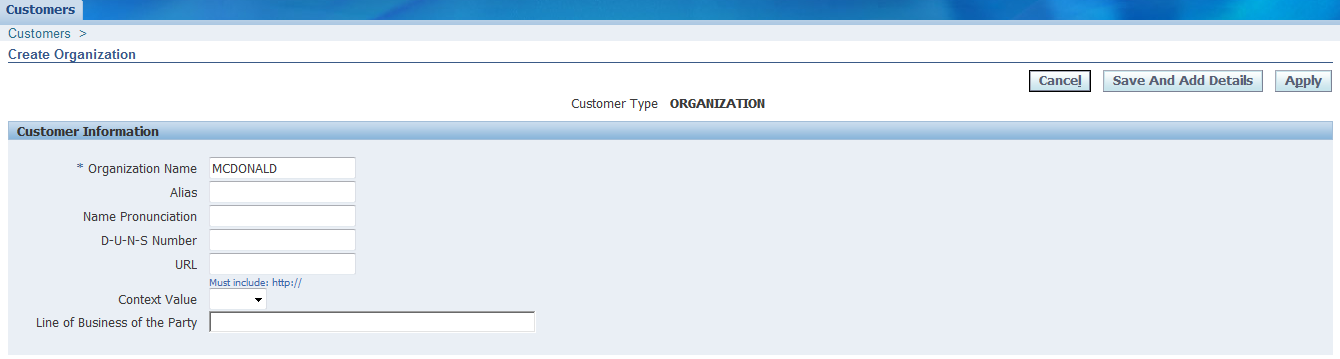
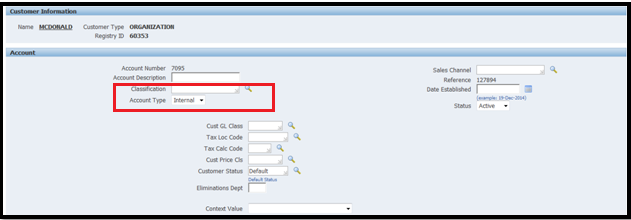
    • Name any organization of your choice.
    • And account type as Internal.

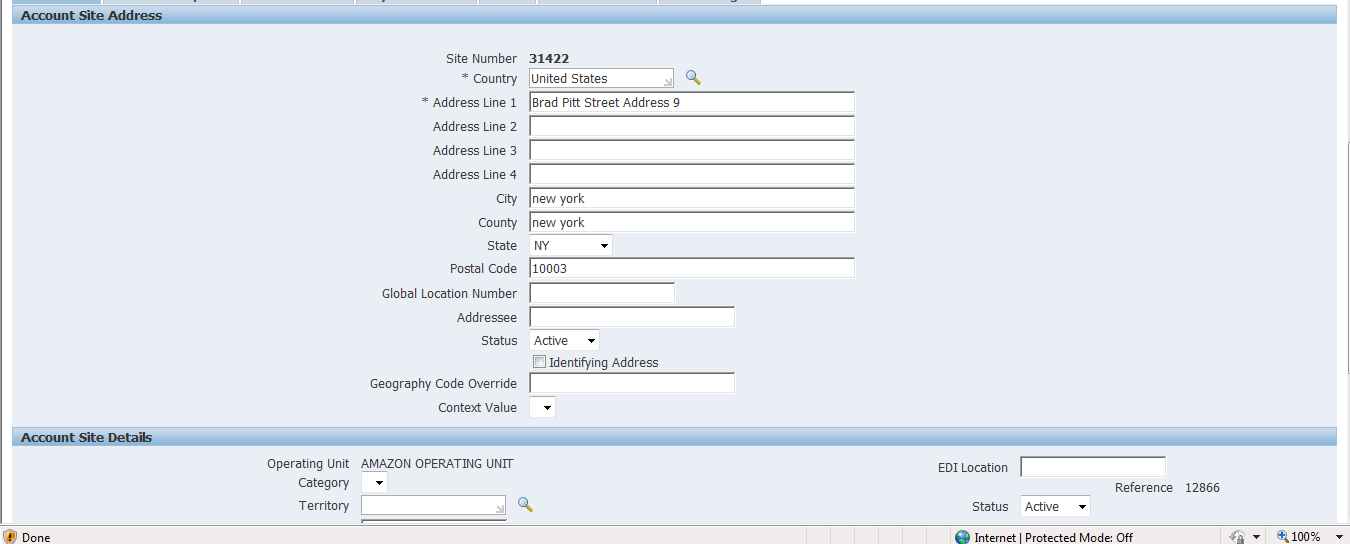
    • Provide a valid address as below.


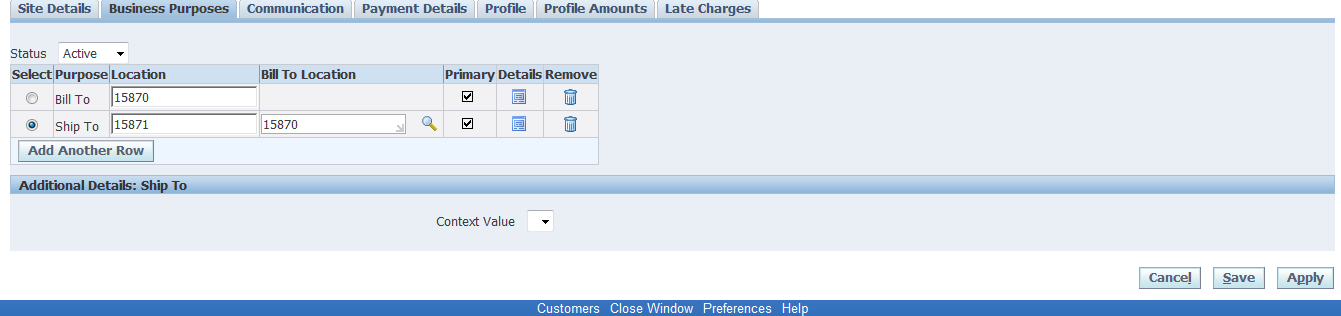
    • Save the box and add the same address or any other for your Ship to address as well.
    • Click on apply which completes customer creation.
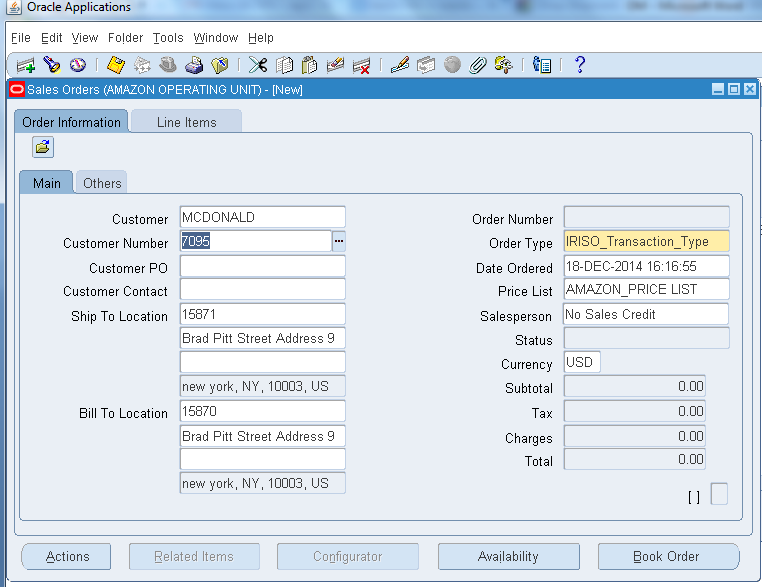
    • Now we are all set to go, open the sales order
    Invoking: Order Management→Orders, Returns →Sales Order
    • The below screen will appear, from which you can book, release and ship confirm sales order.


    • The Oracle Order Management Application provides many flexible features enabling you to set up your system to begin processing order information.
    • This completes the setup procedure for Order Management

    Setup of Transaction Types(Order Type) in Order Management Oracle EBS APPS R12

     Steps:

    1. Creating a Line Transaction Type and validate Workflow
    2. Creating an Order Transaction Type
    3. Assigning Line flows to Order Transaction Type and validate Workflow
    4. Creating a Document Sequence and check Document Categories
    5. Assigning Document Sequence to the Order Transaction Type

    Creating a Line Transaction Type:
    Navigate to Order Management Super User Responsibility -> Setup -> Transaction Types -> Define. Transaction Types
    window opens.
    Select the Operating unit. Type the Transaction Type and Description.
    Select Sales Document Type as Sales Order.
    Select Order Category as Order. If you are creating a transaction type for Return, select Order Category as Return.
    Select Transaction Type Code as Line.
    Save the Record.


    Creating an Order Transaction Type:
    Navigate to Order Management Super User Responsibility -> Setup -> Transaction Types -> Define. Transaction Types
    window opens.
    Select the Operating unit. Type the Transaction Type and Description.
    Select Sales Document Type as Sales Order.
    Select Order Category as Mixed.
    Select Transaction Type Code as Order. Fulfillment Flow as Order Flow-Generic
    In the Main tab, select the Default Order Line Type. You can also select the price list which you want to default while
    creating the order.


    In the Shipping tab, select the Shipping Methods and Freight Terms.


    In the Finance tab, select the Accounting Rule, Invoice Source, etc


    Save the Record.
    Assigning Line flows to Order Transaction Type:
    Click Assign Work Flow Button in the Transaction Types window. Line Workflow Assignment window opens, Select the
    Line Type and Process Name and Click OK.

    Creating a Document Sequence:
    Navigate to Order Management Super User Responsibility -> Setup-> Documents -> Define. Document Sequences
    window opens.
    Enter the Name, Application Name as Order Management, Date, Type as Automatic, Initial Value (It can be of any value
    you want to start from)


    Save the Record.
    Assigning Document Sequence to the Order Transaction Type:
    Navigate to Order Management Super User Responsibility -> Setup-> Documents-> Assign. Sequence Assignment
    window opens.
    In the Document tab, enter the Application Name as Order Management, Order Category created and Ledger.

    In the Assignment tab, enter the Application Name as Order Management, Order Category created and Sequence Created.

    Save the Record.
    Now you can check this by creating a Sales Order.

    If you select the Order Type, you can see that the Price List is defaulted in the Main tab and Payment Terms, Shipping
    Method and Freight Terms in the Others tab. Same way you can default many fields by selecting the same while creating
    the Transaction Type

    Also, you can see the Order Number as 1000 (which we have set as Initial Value while creating the Document Sequence).

    Also, in the Line tab you can see the Line Type corresponding to Order Type is defaulted.

    Wednesday, June 24, 2026

    How to create a employee by using hr employee API

    CREATE OR REPLACE Procedure APPS.K_EMP11(errbuf   out varchar2,

                                        retcode  out varchar2) as

    cursor c1 is select * from EMP_STAGE;

    L_PID NUMBER(30);

    l_AID NUMBER(30);

    L_OVN NUMBER(9);

    L_AOVN NUMBER(9);

    L_ESD DATE;

    L_EED DATE;

    L_FULL_NAME VARCHAR2(100);

    L_CID NUMBER(9);

    L_AS NUMBER(9);

    L_AN VARCHAR2(100);

    L_CW  BOOLEAN;

    L_PW BOOLEAN;

    L_HW BOOLEAN;

    L_EMPNO VARCHAR2(20);

    l_bid number(9);

    l_flag varchar2(1);

    l_count number(9) default 0;

    Begin

    For x1 in c1 loop

    l_count:=l_count+1;

    l_flag :='A';

    --Business Group ID Validation

    Begin

    select business_group_id

    into   l_bid

    from  HRFV_BUSINESS_GROUPS

    where business_group_id = X1.BUSINESS_GROUP_ID;

    Exception

    When others then

    l_flag :='E';

    Fnd_File.put_line(Fnd_File.log,'Invalid Business Group ID'||'Record Number ='||l_count);

    End;

    If(l_flag !='E') then

    HR_EMPLOYEE_API.CREATE_EMPLOYEE(p_validate                 => false

                                    ,p_hire_date                => TRUNC(SYSDATE)

                                    ,p_business_group_id       =>x1.BUSINESS_GROUP_ID

                                    ,p_last_name                =>x1.last_name

                                    ,p_sex                      =>x1.sex

                                    ,p_person_type_id           =>x1.PERSON_TYPE_ID

                                    ,p_date_of_birth            =>x1.DATE_OF_BIRTH

                                    ,p_email_address            =>x1.email

                                    ,p_employee_number          =>L_EMPNO

                                    ,p_first_name               =>x1.first_name

                                    ,p_marital_status          =>x1.MARITAL_STATUS

                                    ,p_person_id               =>L_PID

                                    ,p_assignment_id           =>L_AID

                                    ,p_per_object_version_number    => L_OVN

                                    ,p_asg_object_version_number    =>L_AOVN

                                    ,p_per_effective_start_date    =>L_ESD

                                    ,p_per_effective_end_date      =>L_EED

                                    ,p_full_name                   =>L_FULL_NAME

                                    ,p_per_comment_id              =>L_CID

                                    ,p_assignment_sequence         =>L_AS

                                    ,p_assignment_number           =>L_AN

                                    ,p_name_combination_warning     =>L_CW

                                    ,p_assign_payroll_warning       =>L_PW

                                    ,p_orig_hire_warning            =>L_HW

                                    ,p_national_identifier          => x1.SSID);

    End If;

    End Loop;

    End;

    /


    How to find the secuity profile id by using the Organization Id in the Oracle Apps R12


    select           psp.SECURITY_PROFILE_ID

                       ,psp.BUSINESS_GROUP_ID

                       ,psp.ORGANIZATION_ID

                       ,psp.SECURITY_PROFILE_NAME

    from per_Security_profiles psp

            ,per_security_organizations pso

            ,hr_operating_units hou

    where 1=1

    and psp.SECURITY_PROFILE_ID = pso.SECURITY_PROFILE_ID

    and pso.organization_id = hou.organization_id

    and hou.organization_id = 202

    and psp.BUSINESS_GROUP_ID = 81;

    Oracle Order Management Setup Document in Oracle EBS R12.2

      Oracle Order Management Setup Document in R12.2 Definition: Oracle Order management is one of the most important part of the oracle EBS. T...